How to Create a Google Sheet From a Template on Your Phone
Voice Sheet has 7 Google Sheets templates with columns, categories and summary formulas set up. Here's how to create one in seconds and start adding rows.
In short
In Voice Sheet, open Settings, then Spreadsheets, and tap Add new Google Sheet. Tick any of the 7 templates, tap Create, and each becomes its own spreadsheet in your Google Drive, with columns, categories and summary formulas set up. They appear in the app straight away, ready for entries by voice, form or Quick Capture.
To create a Google Sheet from a template on your phone, open Voice Sheet, go to Settings → Spreadsheets → Add new Google Sheet, tick a template and tap Create. Each template becomes its own spreadsheet in your Google Drive, with tabs, columns, categories and summary formulas already set up, and it appears in the app straight away.
This is part 3 of the getting-started series. Part 1 shows the first setup, where the template for your goal is ticked for you.
The 7 templates and what's inside
| Template | Tabs you add entries to | Columns |
|---|---|---|
| Personal Finances | Income, Expenses, Monthly Budget | Expenses: Date, Category, Amount, Notes |
| Tasks | Tasks | Task, Status, Priority, Due Date, Project, Notes |
| Projects | Projects, Milestones | Project, Status, Priority, Start Date, Due Date, Owner, Notes |
| Habits | Habit Log | Date, Habit, Status, Count, Notes |
| Inventory | Items, Stock Movements | Item, Category, Quantity, Unit Price, Total Value, Location, Notes |
| Work Log | Time Log | Date, Project, Task, Hours, Billable, Notes |
| Health & Fitness | Activity Log, Measurements | Date, Activity, Duration (min), Distance (km), Calories, Notes |
Every template except Personal Finances also gets a Summary tab with formulas, such as hours this month or workouts this month. The Summary tab is hidden in the app because you never type into it; you see it in Google Sheets. Personal Finances has its Monthly Budget tab instead, which powers the budget dashboard.
How to create a spreadsheet from a template
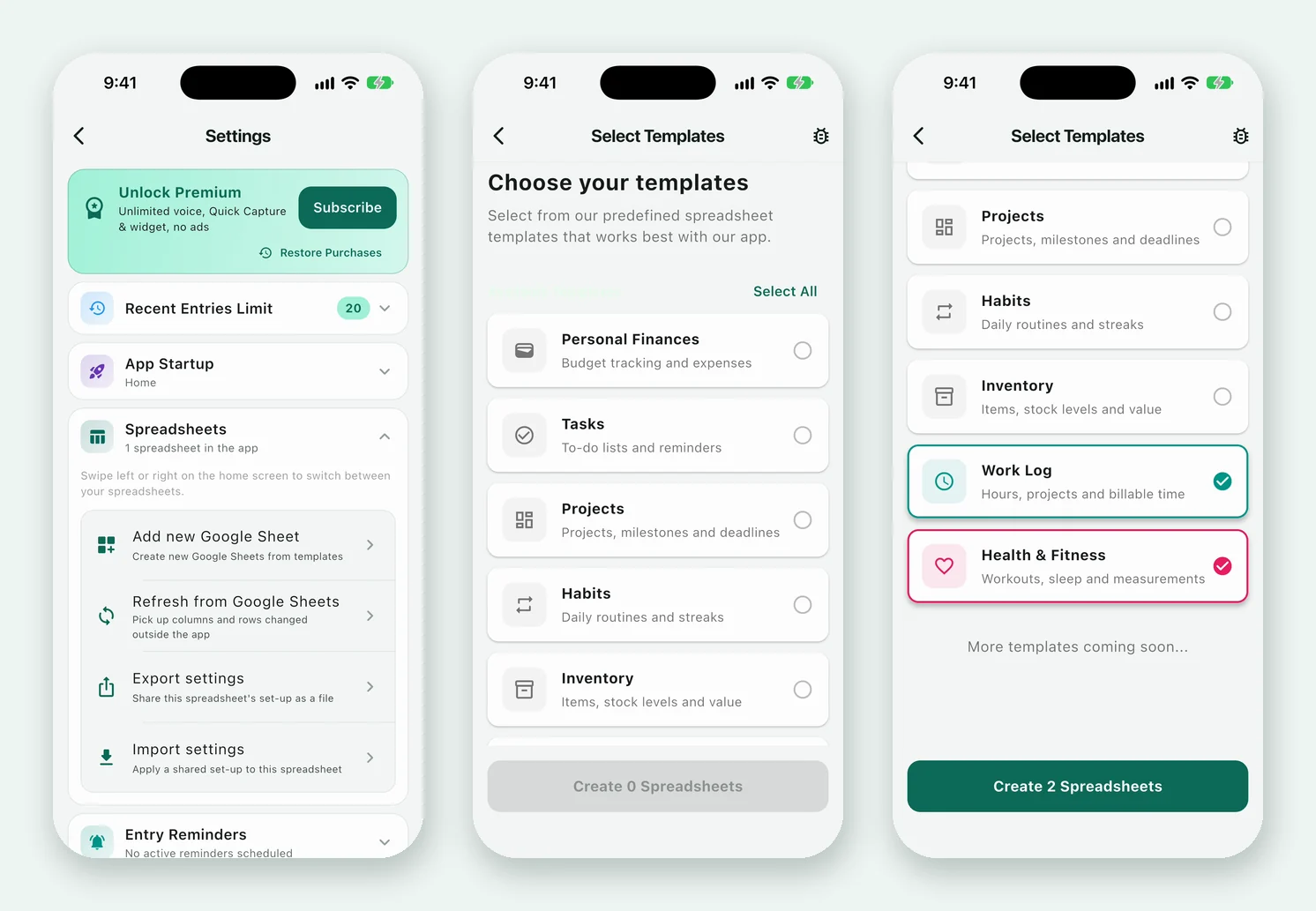
- Tap the gear on the home screen to open Settings.
- Open Spreadsheets and tap Add new Google Sheet.
- Tick one or more templates. Select All ticks all of them.
- Tap Create 2 Spreadsheets (the count matches what you ticked).
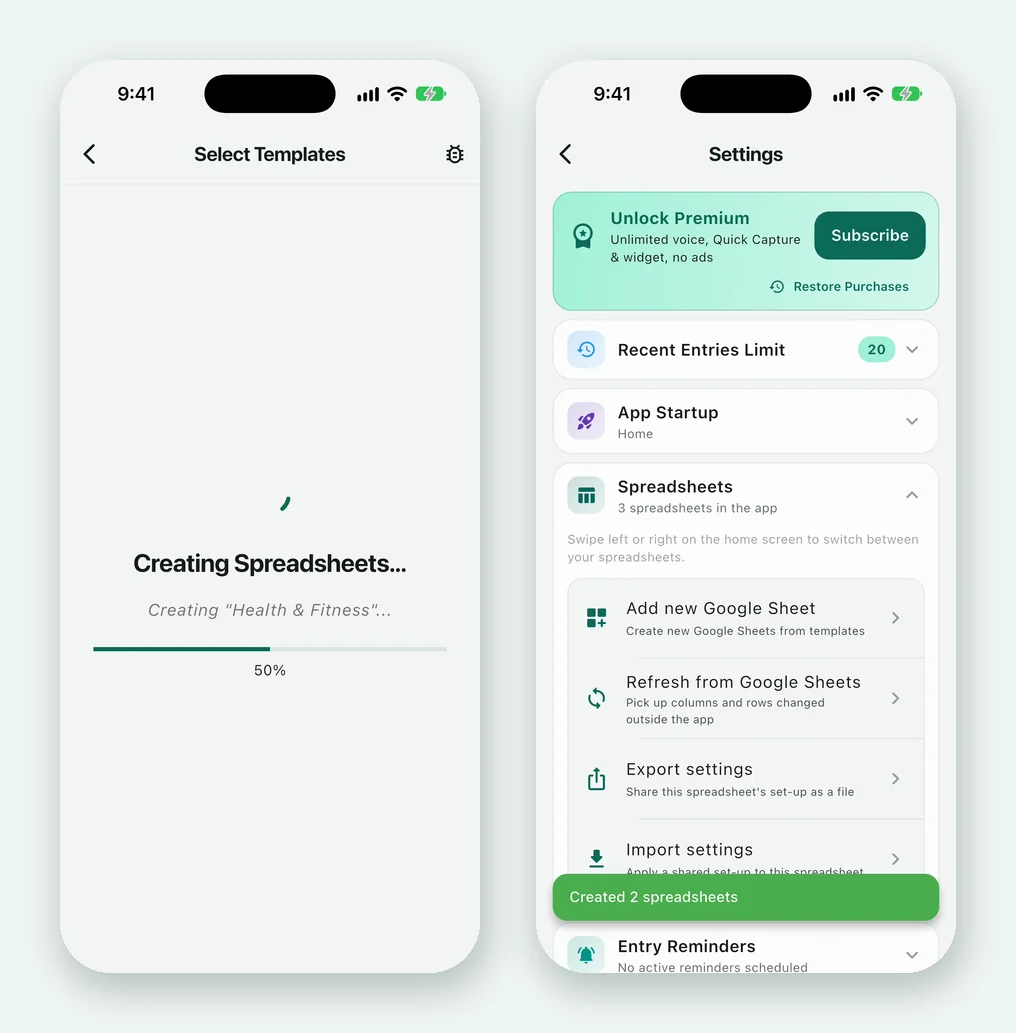
- Wait for "Created 2 spreadsheets". They're now in your Drive and in the app.
Switch between spreadsheets on the home screen
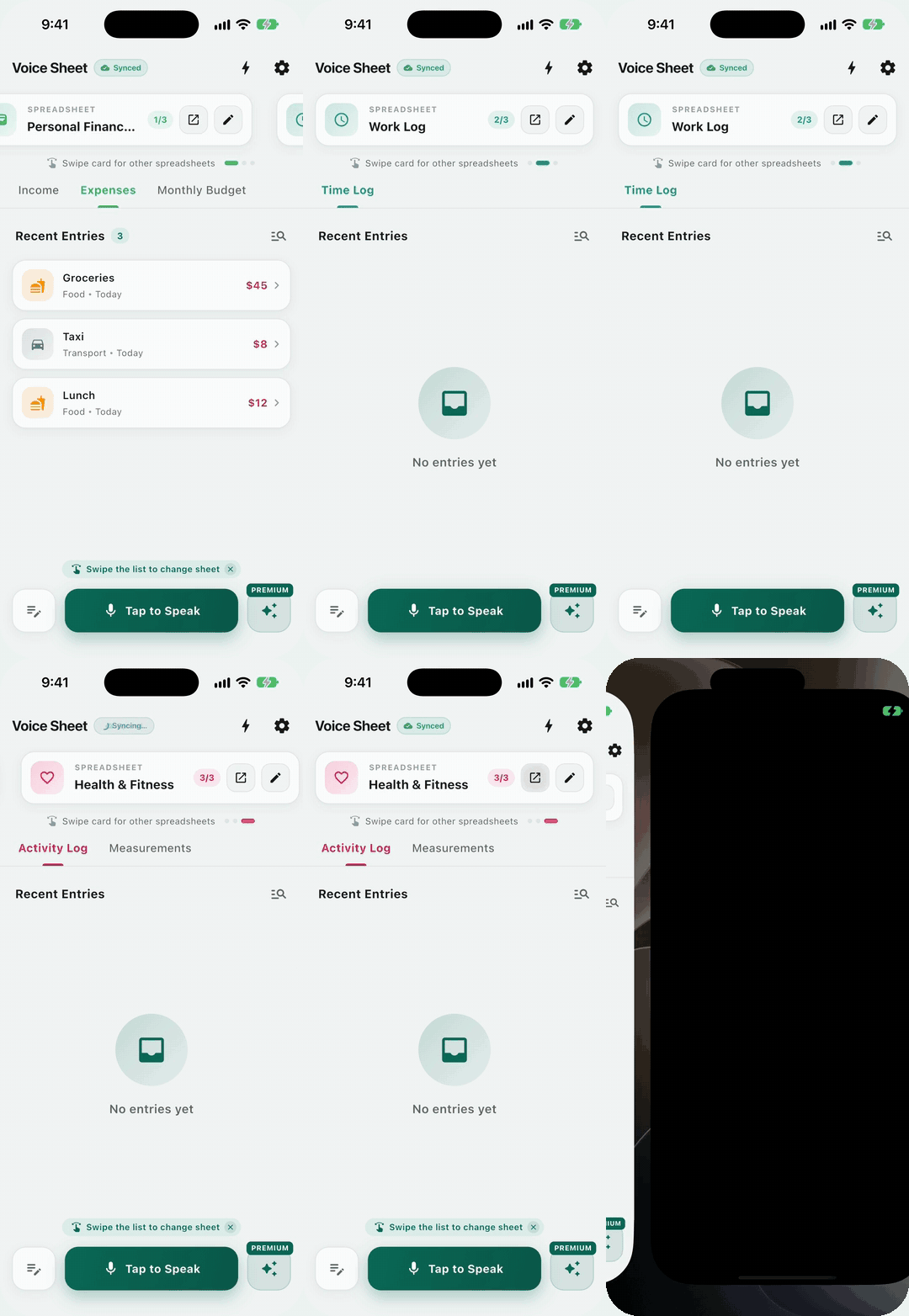
Back on the home screen, swipe the spreadsheet card left or right to move between spreadsheets. The dots under the card show how many you have, and the tabs below it switch between a spreadsheet's tabs, such as Activity Log and Measurements.
See the formulas in Google Sheets
Tap the open icon on the spreadsheet card to open the file in Google Sheets. Template spreadsheets are named with a "[Voice Sheet]" prefix so they're easy to find in Drive. The Summary tab already has its formulas, waiting for your first entries:
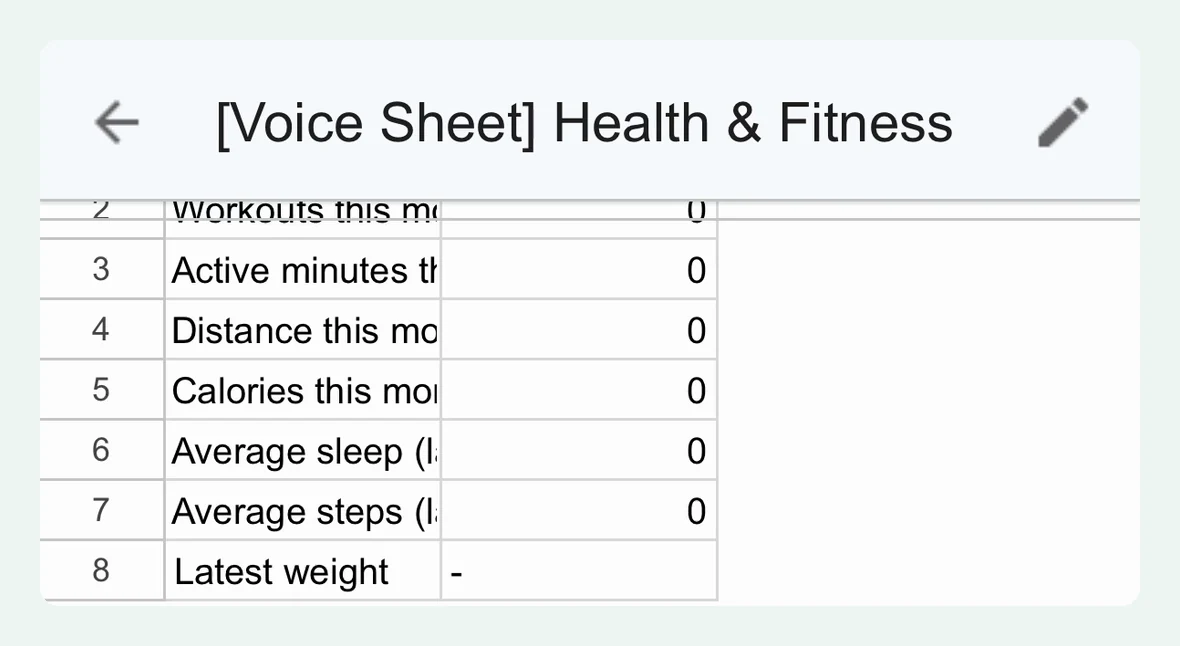
Add an entry by voice, form or Quick Capture, and the totals update in the sheet. For example, say "45 minutes at the gym, 380 calories" and check the draft: it becomes one row in the Activity Log, and the month's totals on the Summary tab include it.
One thing to know: one currency per spreadsheet
Each spreadsheet has one currency. If you change it, every money column in that spreadsheet changes with it; amounts aren't converted. To track two currencies, use two spreadsheets. Our multi-currency expense tracking post shows how.
Want the template without the app? You can make a copy of the Personal Finances sheet from this page, or browse all of them on the Google Sheets templates page. The free expense tracker template post explains its formulas line by line. Last in the series: use Voice Sheet without a Google account.
Frequently asked questions
What templates does Voice Sheet have?
Seven: Personal Finances, Tasks, Projects, Habits, Inventory, Work Log, and Health & Fitness. Each one is a real Google Sheet with its own tabs and columns. Personal Finances includes Income, Expenses and Monthly Budget tabs. Most others have a Summary tab with formulas that total your entries.
Are the templates free?
Yes. All 7 templates are on the free plan, along with forms built from your columns, the budget dashboard and offline sync. The free plan also includes 3 voice entries a day and 1 Quick Capture or widget entry a day. Premium makes voice and Quick Capture unlimited and removes ads.
Where are template spreadsheets saved?
In your own Google Drive, with names like "[Voice Sheet] Health & Fitness". If you use the app without a Google account, they're created on your phone instead and copied to your Drive when you connect Google later. Either way, Voice Sheet doesn't keep your entries on its own servers.
Can I change a template's columns?
Yes. You can edit columns in the app's column editor or in Google Sheets on a computer. If you change them in Google Sheets, open Settings, then Spreadsheets, and tap Refresh from Google Sheets so the app picks up the new layout.