How to Add Rows to an Existing Google Sheet From Your Phone
Keep the spreadsheet you already use. Connect it to Voice Sheet, get a phone form built from its columns, and add rows by typing or voice.
In short
To add rows to an existing Google Sheet from your phone, connect the spreadsheet to Voice Sheet with Full access. The app reads the first row as column titles and builds a form from them, with date pickers, number fields and dropdowns made from values already in the sheet. Each entry is added as a new row.
You can add rows to an existing Google Sheet from your phone without retyping your layout. Connect the spreadsheet to Voice Sheet with Full access, tick it, and the app builds a form from your first row of column titles. Each entry you submit becomes a new row under your data. Here's the whole process, step by step, with a real household budget sheet.
This is part 2 of the getting-started series. Part 1 covers setting up Voice Sheet.
The sheet used in this example
A spreadsheet called Family Budget, made by hand in Google Sheets, with five rows of data:
| Date | Item | Category | Amount | Paid by |
|---|---|---|---|---|
| 2026-11-20 | Groceries | Food | 86.40 | Sam |
| 2026-11-21 | Electricity bill | Utilities | 72.15 | Alex |
| 2026-11-22 | School lunch | Kids | 18.00 | Sam |
| 2026-11-23 | Fuel | Transport | 45.30 | Alex |
| 2026-11-24 | Movie night | Fun | 32.00 | Sam |
The only requirement is that row 1 holds the column titles. That's the row Voice Sheet reads.
How do you add rows to an existing Google Sheet from your phone?
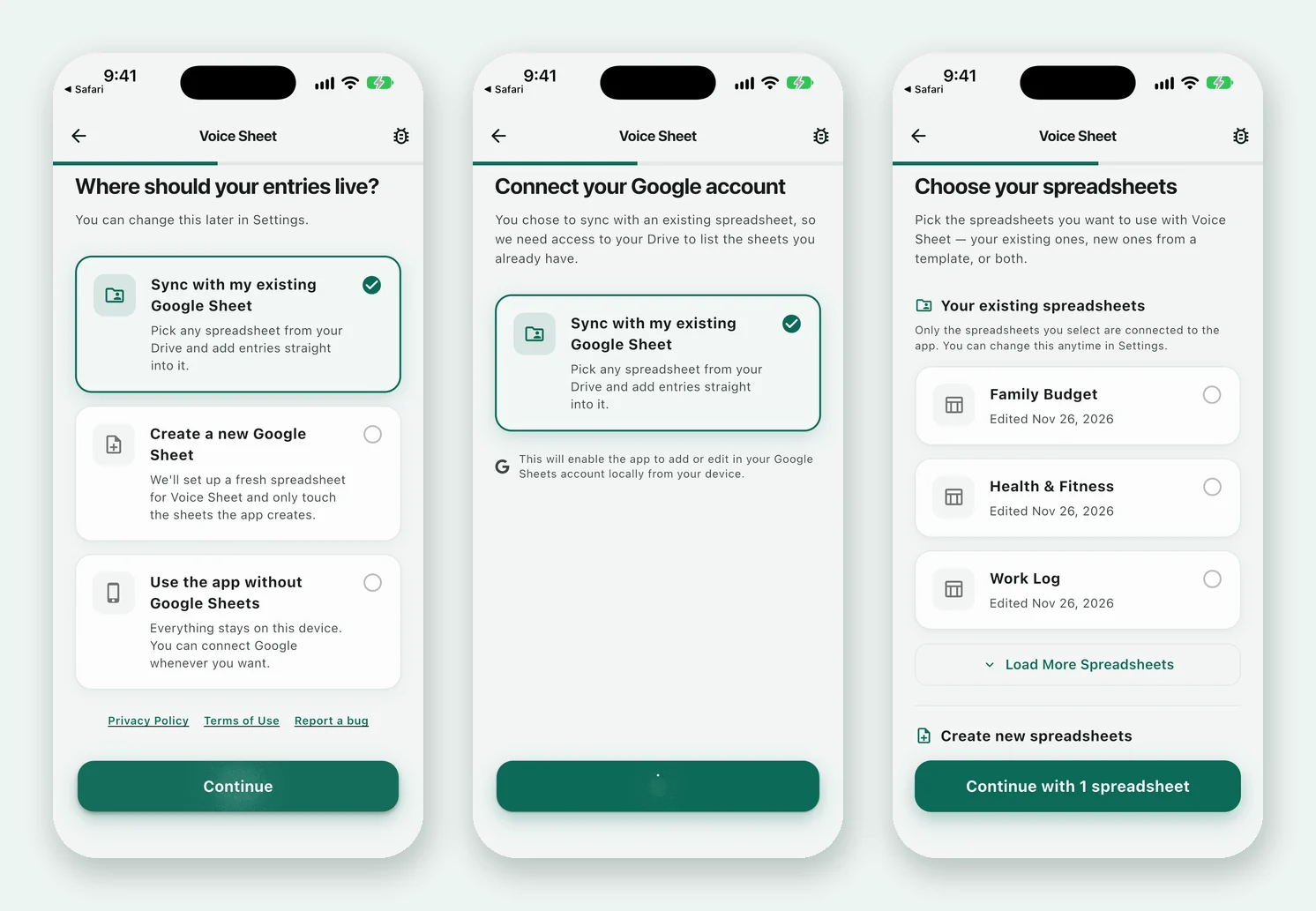
- During setup, choose Sync with my existing Google Sheet.
- Read why the app needs your Drive, then tap Sign in with Google.
- On Google's screen, tick the box that lets the app see and edit your Google Sheets spreadsheets.
- Tick your spreadsheet under Your existing spreadsheets. Tap Load More Spreadsheets if you don't see it.
- Untick any template you don't want, then continue.
- Add entries with Manual Entry, the mic, or Quick Capture. Each one is a new row.
Why an existing sheet needs Full access
Google offers two levels of access, and Voice Sheet shows both in Settings under Google Account → Access Level:
| Access level | What the app can see | Use it when |
|---|---|---|
| Restricted | Only spreadsheets Voice Sheet created | You start from a template or a new sheet |
| Full | All your spreadsheets, so you can pick one | You want to use a sheet you already have |
With Full access, only the spreadsheets you tick appear in the app. Your other spreadsheets stay out of it. Switching levels asks you to sign in with Google again.
When Google's consent screen appears, check that the Google Sheets box is ticked. If it isn't, the app can't open your spreadsheet, and you'll see a message asking you to tick it.
A form built from your own columns
After setup, the home screen shows your spreadsheet and its tab, with your existing rows as recent entries. Tap Manual Entry and the form matches your columns. In the Family Budget example:
- Date opens a date picker.
- Amount gets a number keypad with your currency symbol.
- Category becomes a dropdown of the values already in that column: Food, Fun, Kids, Transport and Utilities.
- Item and Paid by are text fields.
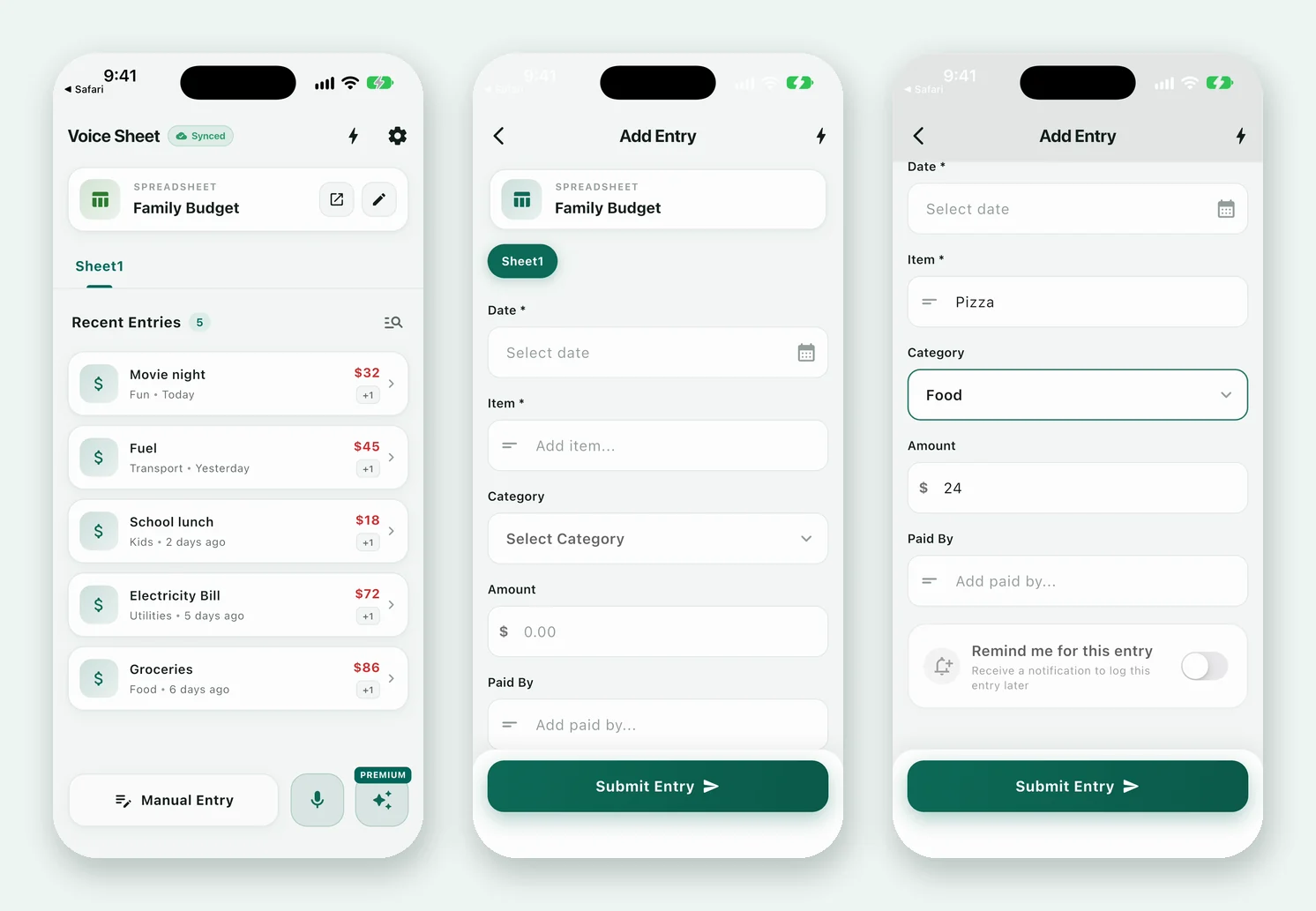
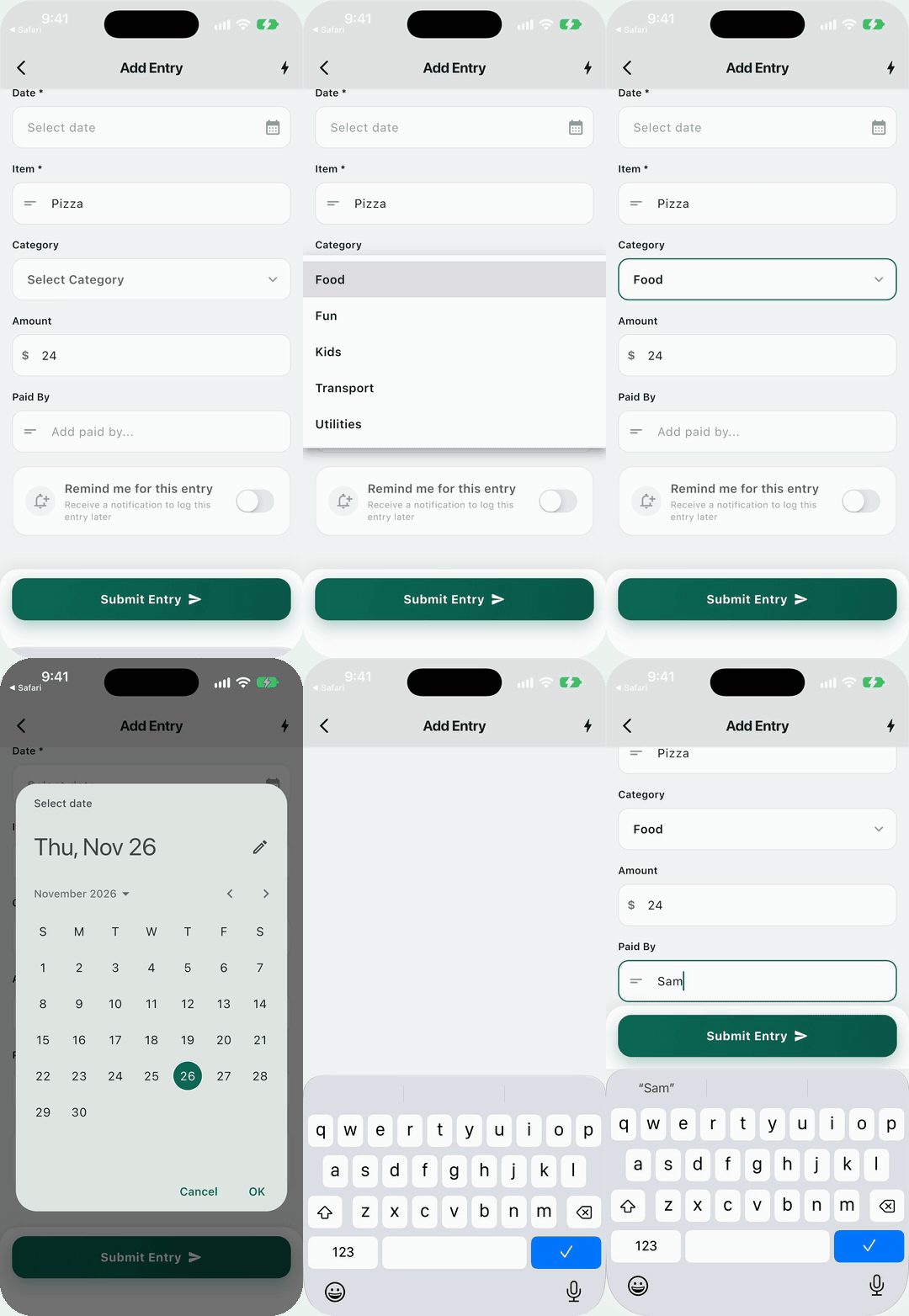
The new entry appears at the top of the list and as a new row in Family Budget. Typing isn't the only way: tap the mic and say "Pizza 24, food, paid by Sam", or type several entries in one line with Quick Capture. Each becomes its own row. If your sheet has a lot of categories, our post on Google Sheets dropdown categories explains how to keep the list tidy.
Managing your connected spreadsheets later
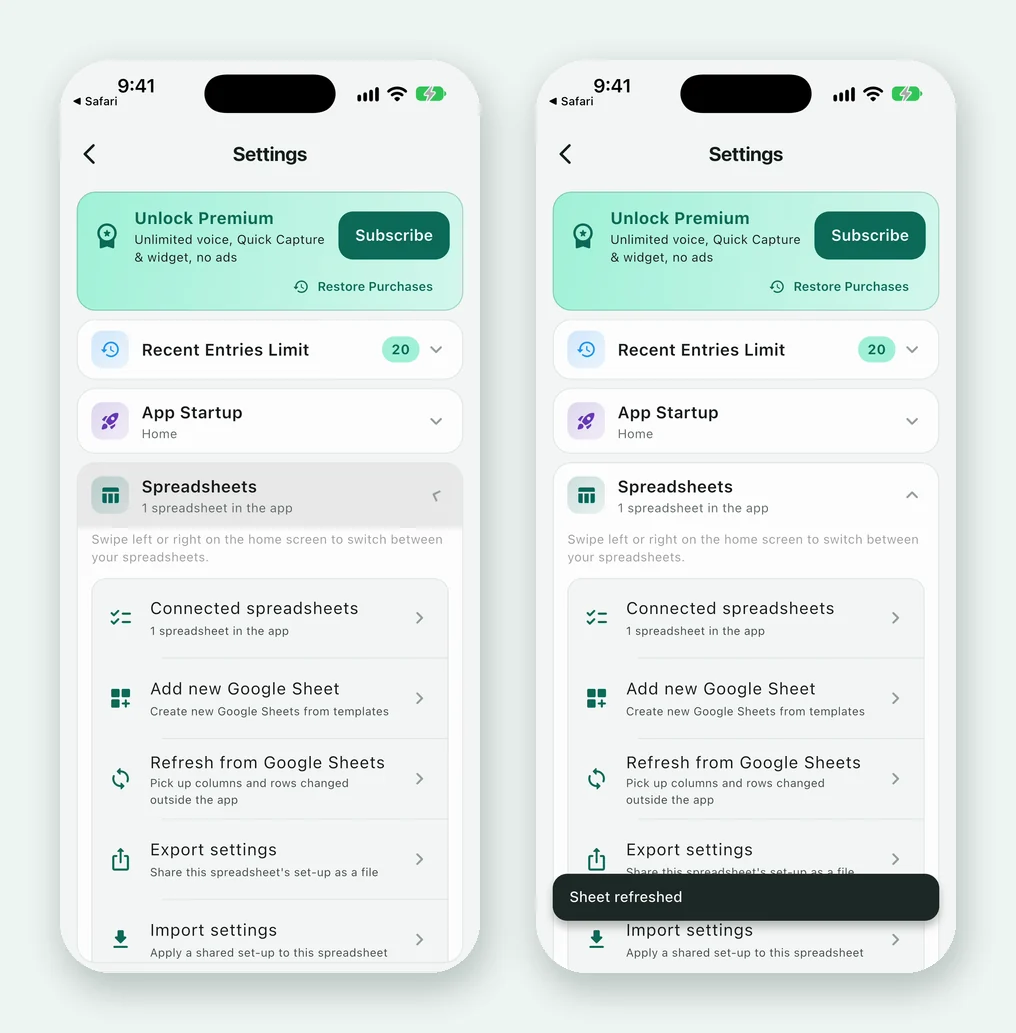
Everything lives in Settings → Spreadsheets:
- Connected spreadsheets: tick or untick spreadsheets to add them to the app or remove them. The rest of your Drive is never shown in the app.
- Add new Google Sheet: create more from templates.
- Refresh from Google Sheets: after you rename, add or move columns on a computer, tap this so the app picks up the change. You'll see "Sheet refreshed".
Tips for an existing sheet
- Keep titles in row 1. No blank rows or merged cells above them.
- One tab, one kind of data. Each tab becomes its own place to add entries, so keep income and spending in separate tabs if they have different columns.
- Formulas are safe in other tabs. Put totals on a separate tab, as the expense tracking in Google Sheets guide does, so new rows never land on top of them.
For more on how entries reach your file, see Google Sheets sync and forms built from your columns. Next in the series: start from a ready-made template.
Frequently asked questions
Can Voice Sheet use a Google Sheet I already have?
Yes. Choose "Sync with my existing Google Sheet" during setup, or switch to Full access in Settings later, then tick the spreadsheets you want. Voice Sheet reads each tab's first row as column titles and adds new entries as rows under your existing data. Your formatting and other tabs stay as they are.
Why does Voice Sheet need Full access for an existing sheet?
Google's Restricted access only lets an app see files it created itself, so it can't list or open a spreadsheet you made. Full access lets Voice Sheet see your spreadsheets so you can pick one. Only the spreadsheets you tick appear in the app, and you can switch back to Restricted in Settings.
What happens if I change my sheet's columns on a computer?
Open Settings, then Spreadsheets, and tap Refresh from Google Sheets. The app picks up columns and rows that changed outside it, so the form matches your new layout. Keep your column titles in the first row, because that's the row the app reads them from.
Does Voice Sheet change or delete my existing rows?
Adding an entry appends a new row. You can open an entry in the app to edit or delete it, but nothing changes in your sheet unless you do that. The rest of the file, including other tabs and formulas, stays under your control in Google Sheets.