Can You Use Voice Sheet Without a Google Account?
Yes. Pick "Use the app without Google Sheets" and everything stays on your phone. Here's how it works and how to connect Google later without losing entries.
In short
Yes. During setup, choose "Use the app without Google Sheets" and Voice Sheet creates your spreadsheets on the phone. You add entries the same way, by form, voice or Quick Capture. When you're ready, tap Connect & Sync with Google in Settings, and your spreadsheets and entries are copied to your Google Drive.
Yes, you can use Voice Sheet without a Google account. During setup, choose Use the app without Google Sheets, and your spreadsheets are created on the phone instead of in Google Drive. You add entries exactly as you would with Google connected. When you're ready, Settings → Google Account → Connect & Sync with Google copies everything to your Drive, so nothing is lost.
This is part 4 of the getting-started series. Start with part 1: setting up Voice Sheet if you haven't installed the app yet.
Phone only vs connected: what changes
| Phone only | Connected to Google | |
|---|---|---|
| Where entries are stored | In the app on this phone | Your own Google Sheet in Drive, plus the phone |
| Forms, voice, Quick Capture, reminders | Yes | Yes |
| All 7 templates | Yes, created on the phone | Yes, created in Drive |
| Open in Google Sheets on a computer | No | Yes |
| Survives deleting the app | No | Yes |
How to use Voice Sheet without a Google account
- Pick your goal and try voice on the first screens, as in part 1.
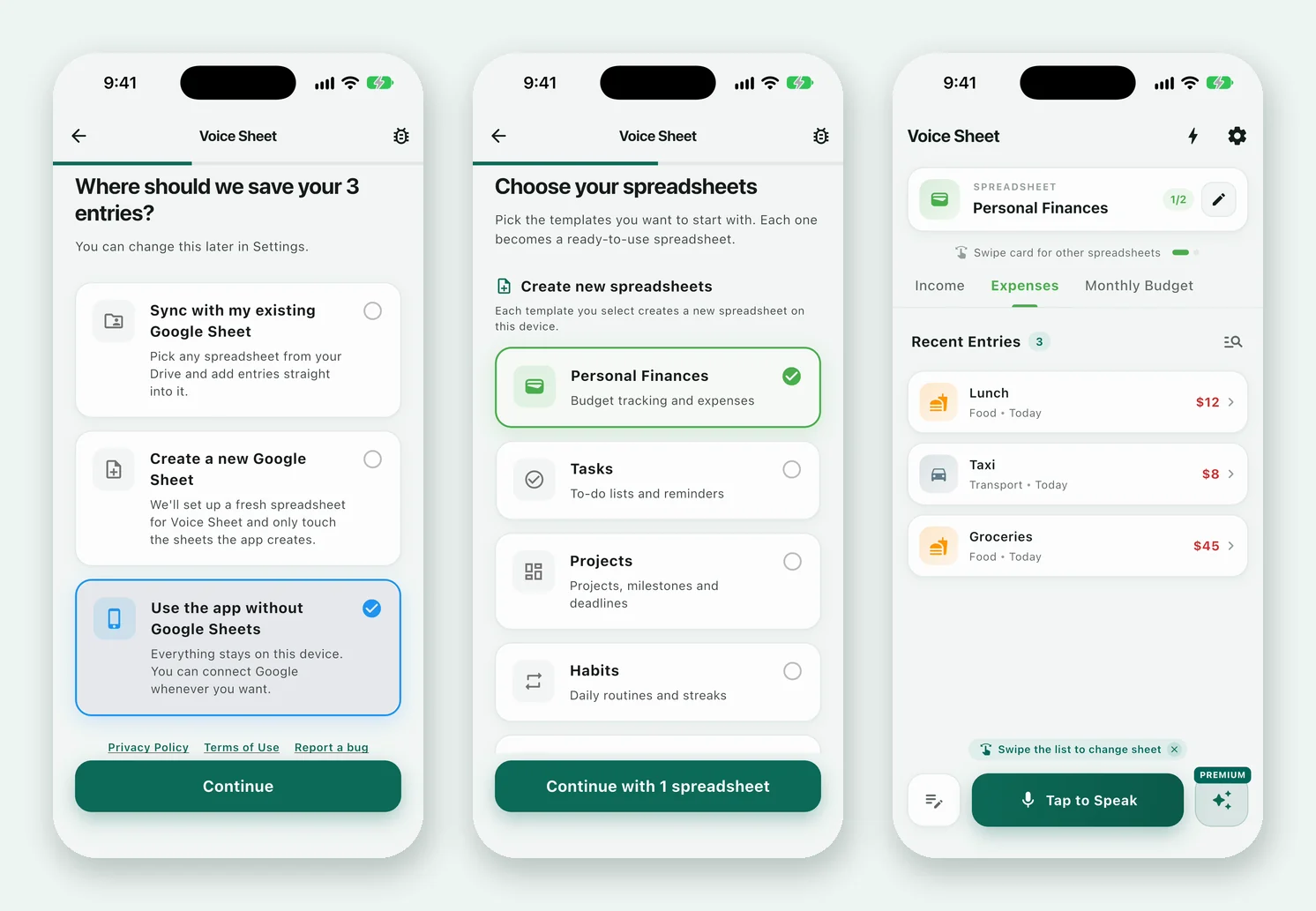
- On "Where should we save your entries?", choose Use the app without Google Sheets. The card says what it means: "Everything stays on this device. You can connect Google whenever you want."
- Pick your templates. The screen notes that each one "creates a new spreadsheet on this device".
- Finish the remaining steps. There's no sign-in.
Adding entries works the same way
The home screen, the forms and the buttons are identical. Tap Manual Entry for a form built from the template's columns, tap the mic to say an entry, or use Quick Capture for several at once. The date field opens a date picker and the amount field a number keypad.
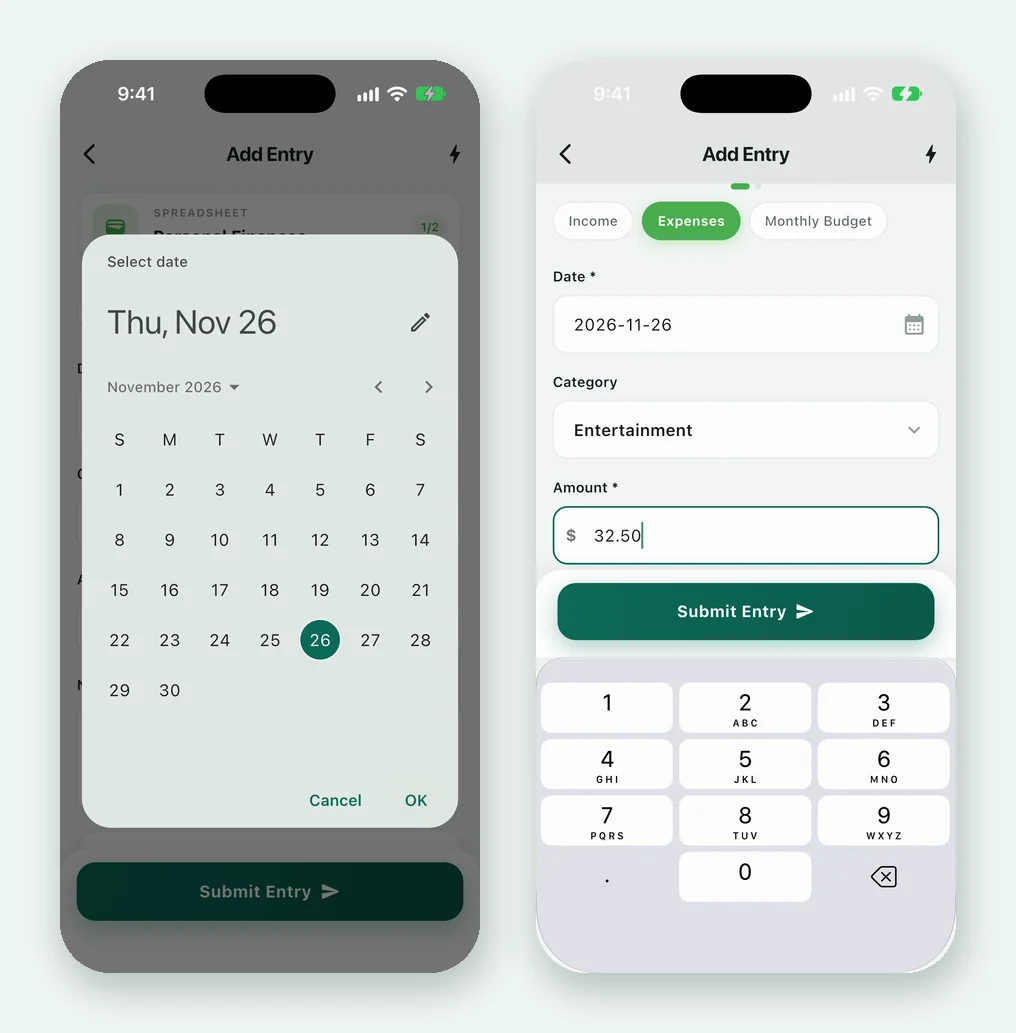
A phone-only setup also works with no internet for form entries, as covered in the offline expense tracker post. Voice entry still needs a connection, because the words you say and your column names are sent to Google Gemini to fill the columns.
How to connect Google later without losing entries
- Open Settings and expand Google Account. It says "Using Local Storage".
- Tap Connect & Sync with Google and sign in.
- Wait for "Successfully connected to Google!" The card now says Connected to Google Sheets.
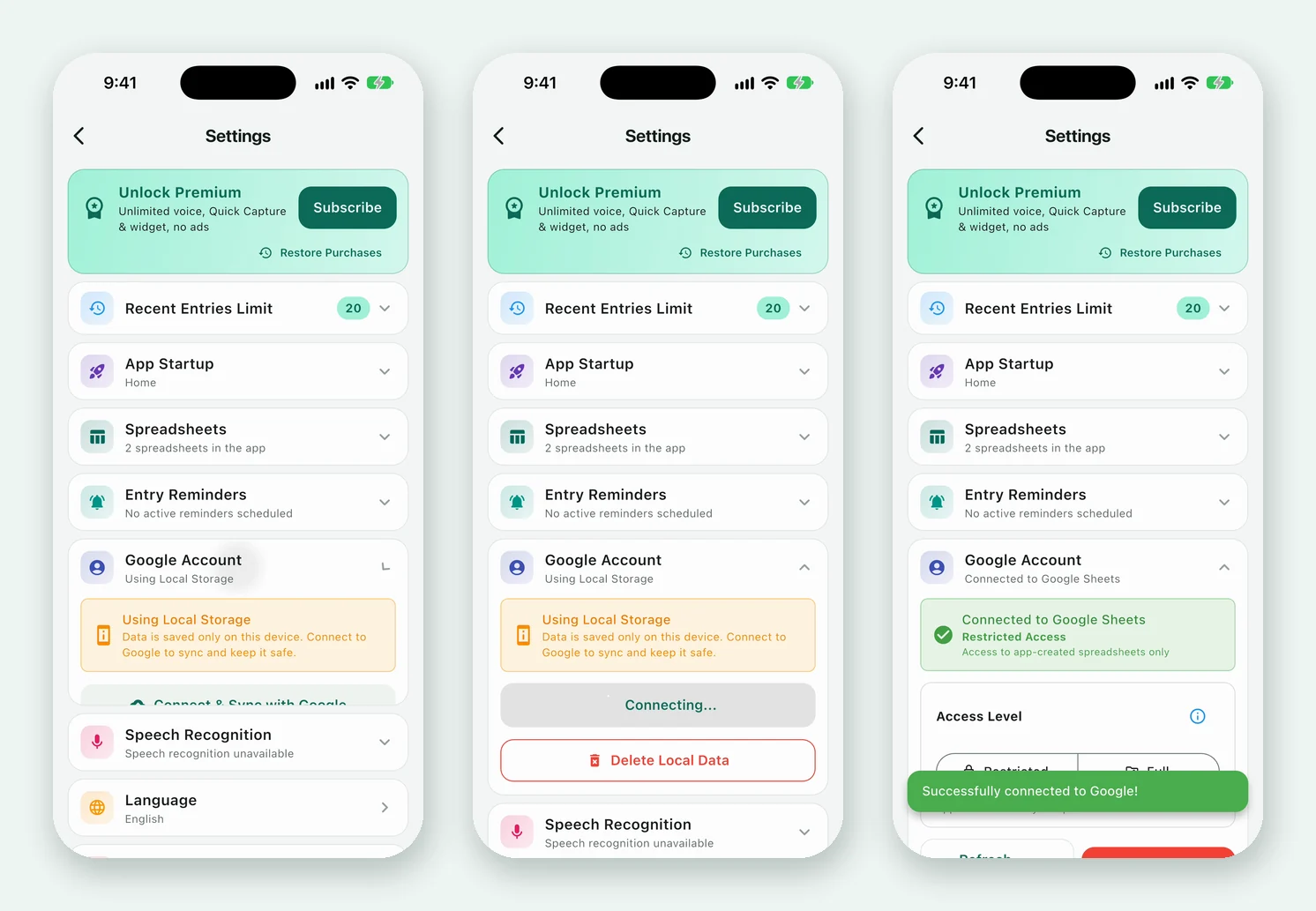
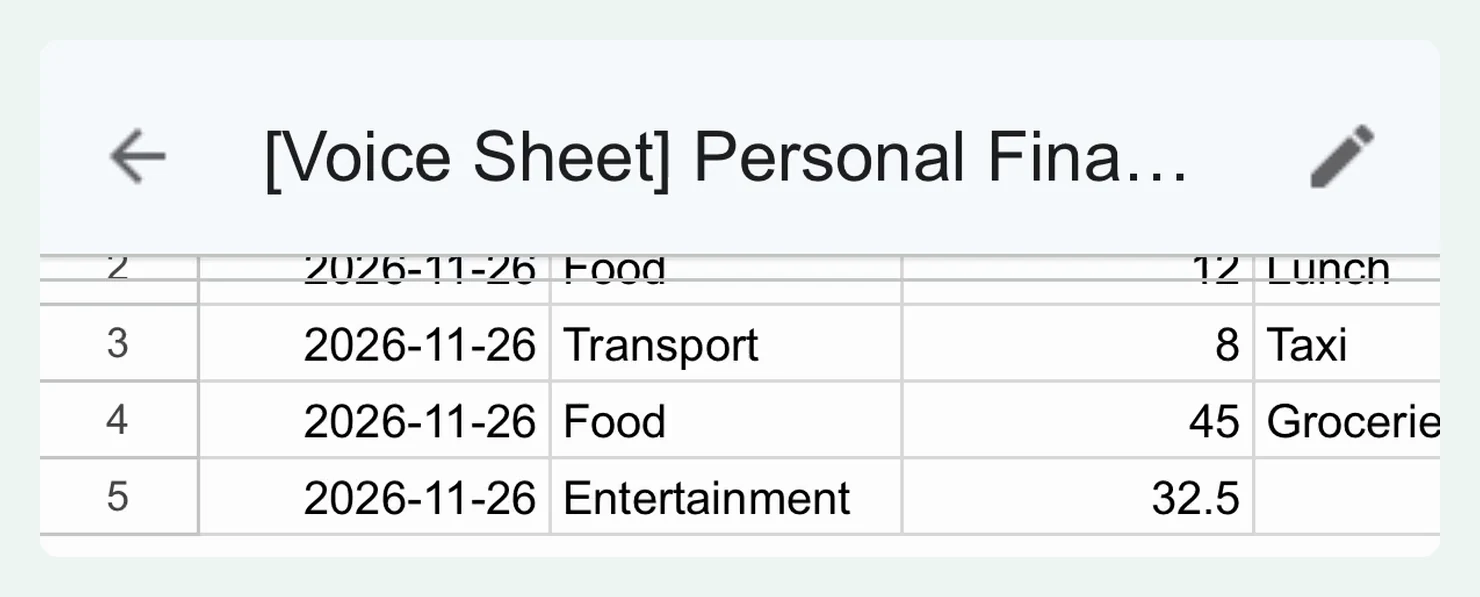
Voice Sheet then uploads the spreadsheets you made on the phone to your Google Drive, entries included. Open one in Google Sheets and every entry you added offline is a row:
One thing to know: phone-only data isn't backed up
Until you connect Google, your spreadsheets exist only in the app on that phone. If you delete the app or lose the phone before connecting, those entries are gone. If you plan to switch phones, connect Google first.
If you'd rather keep finance data away from banks and aggregators, connecting Google doesn't change that: your entries go to your own spreadsheet, and Voice Sheet never links a bank account. See tracking expenses without linking your bank, and read how Google Sheets sync and offline entries work.
Frequently asked questions
Can I use Voice Sheet without a Google account?
Yes. Choose "Use the app without Google Sheets" during setup. Your spreadsheets are created on the phone, and forms, voice entry, Quick Capture, templates and reminders all work. You can connect a Google account later from Settings with Connect & Sync with Google, and nothing you added is lost.
What happens to my entries when I connect Google later?
When you tap Connect & Sync with Google and sign in, Voice Sheet uploads the spreadsheets you made on the phone to your Google Drive, with the entries in them. You then see them as normal Google Sheets you can open on a computer, share or chart.
Are phone-only entries backed up?
No. Until you connect Google, your spreadsheets live only in the app on that phone. If you delete the app or lose the phone before connecting, the entries are gone. Connect Google before switching phones or deleting the app.
Does voice entry work without a Google account?
Yes. Voice entry uses your phone's speech recognition and works without signing in to Google. The free plan includes 3 voice entries a day. The words you say and your column names are still sent to Google Gemini to fill the columns, so voice needs an internet connection.